
Your first video
The easy path takes four steps and leaves everything else at its default. You can always come back and change things — the preview follows every change.
1. Release type
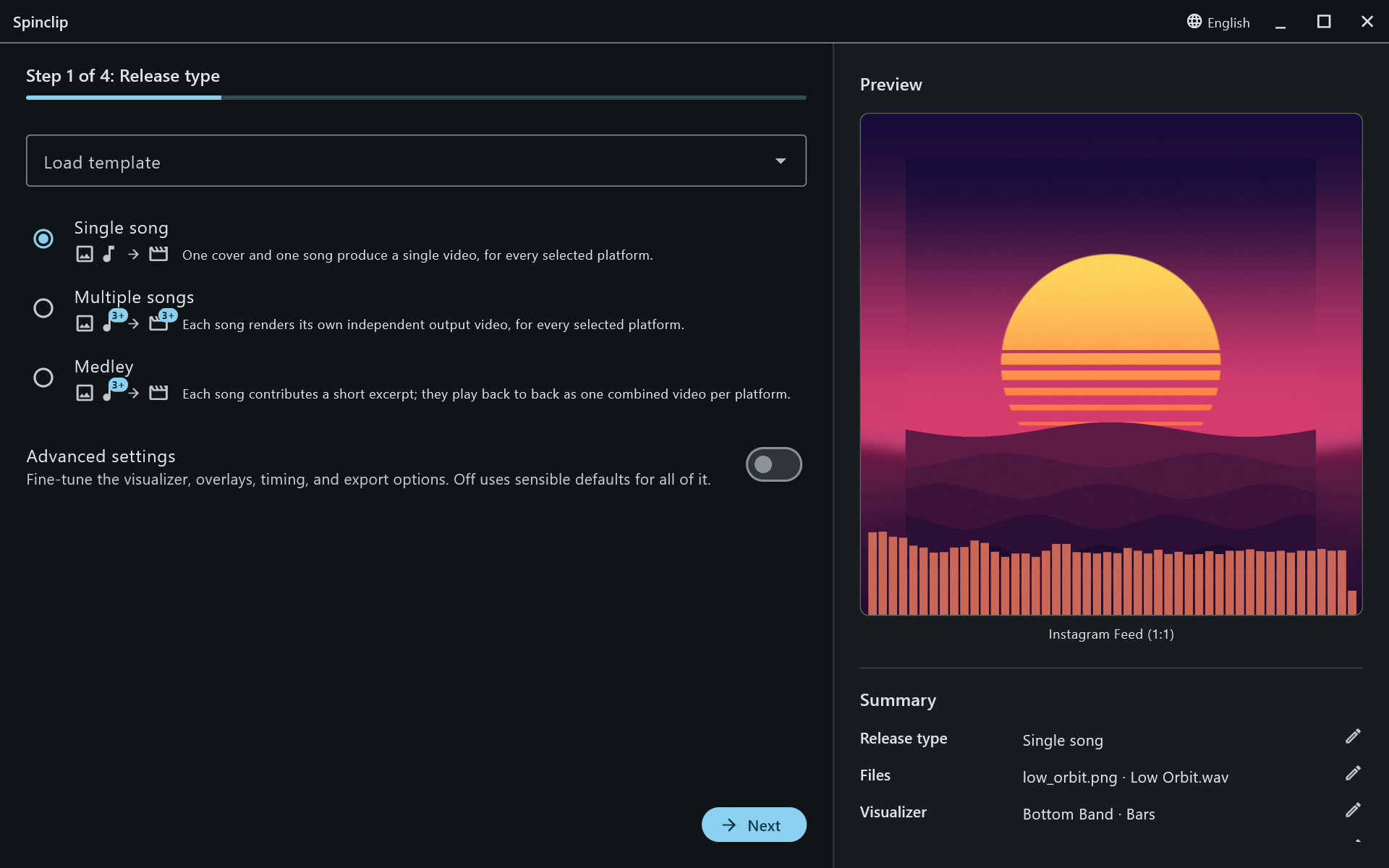
Section titled “1. Release type”Leave Single song selected and press Next. (More on release types.)
2. Files
Section titled “2. Files”Click the first box (or drop a file on it) to pick the cover image — PNG or JPG, square works best. Then pick the audio file: WAV, MP3, FLAC, OGG, AIFF or M4A.
Spinclip shows the song’s details — length, format, sample rate, bit depth, channels, bitrate, size — with its waveform and a Play song button. The preview on the right renders its first frame.
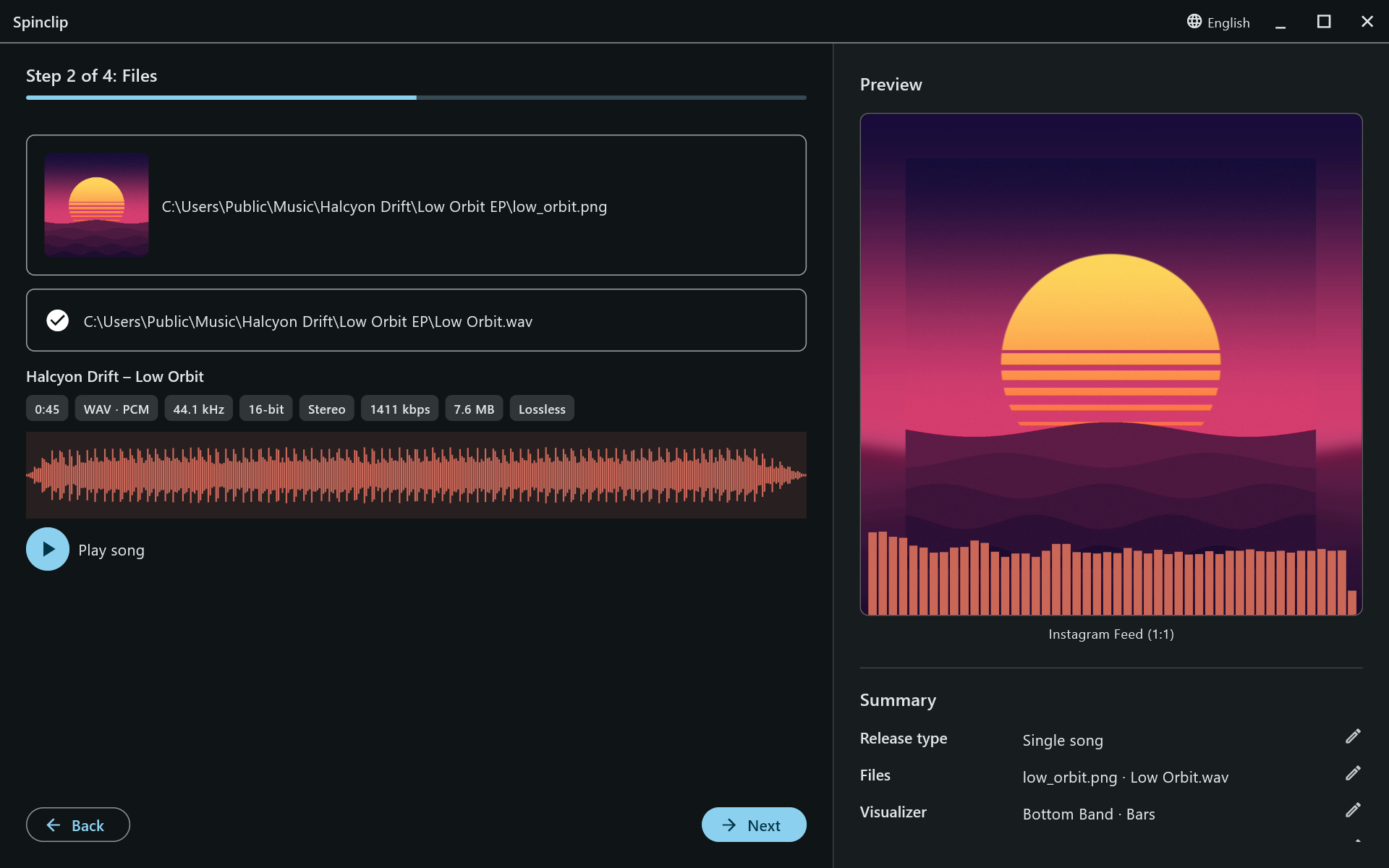
Next stays disabled until both files are in.
3. Platforms
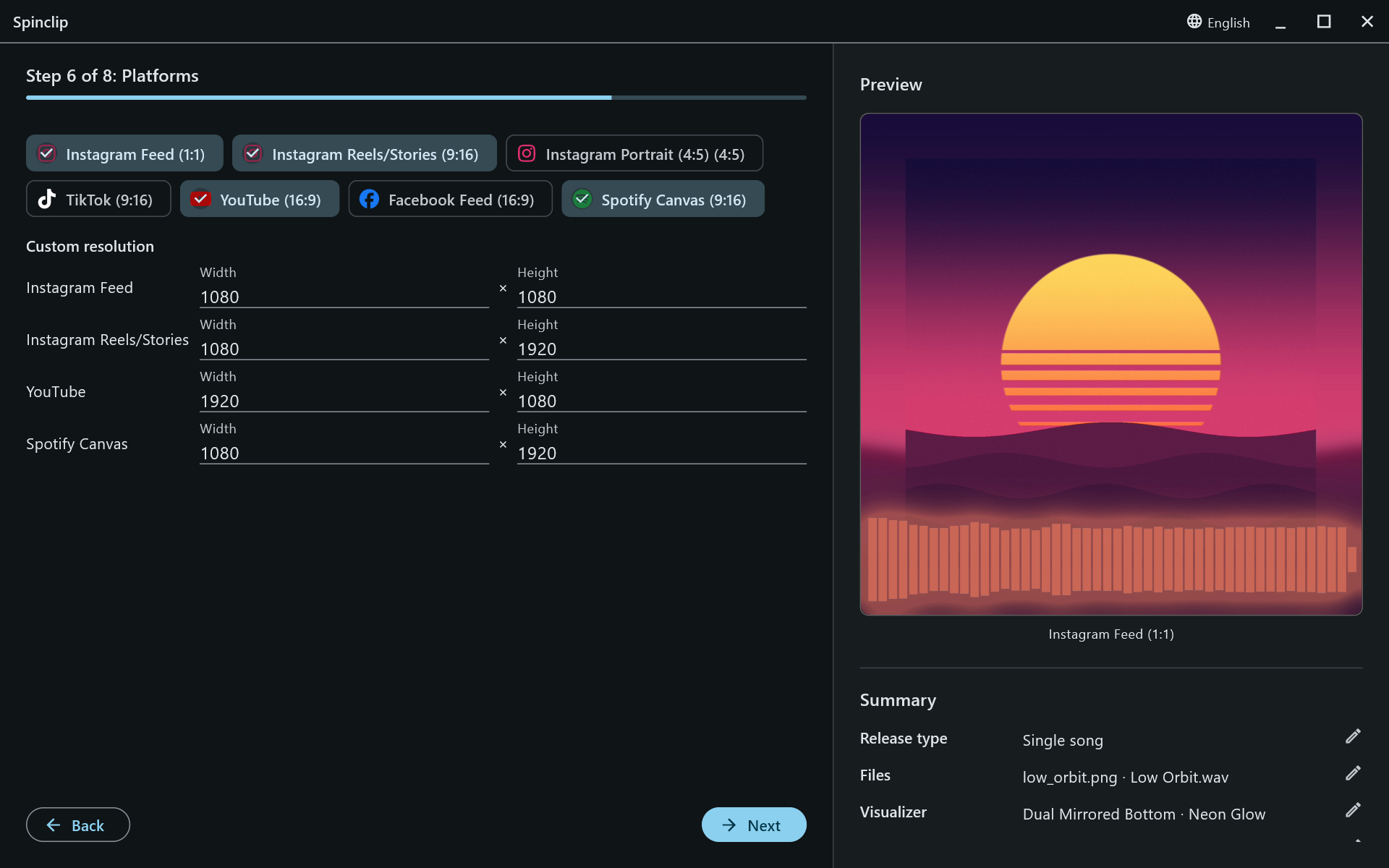
Section titled “3. Platforms”Tick every platform the release goes out on. Each one gets its own video, laid out for its shape. (The platforms and their sizes.)
4. Review & render
Section titled “4. Review & render”Check the Summary on the right and press Render. A progress bar follows each platform in turn; Cancel stops it.
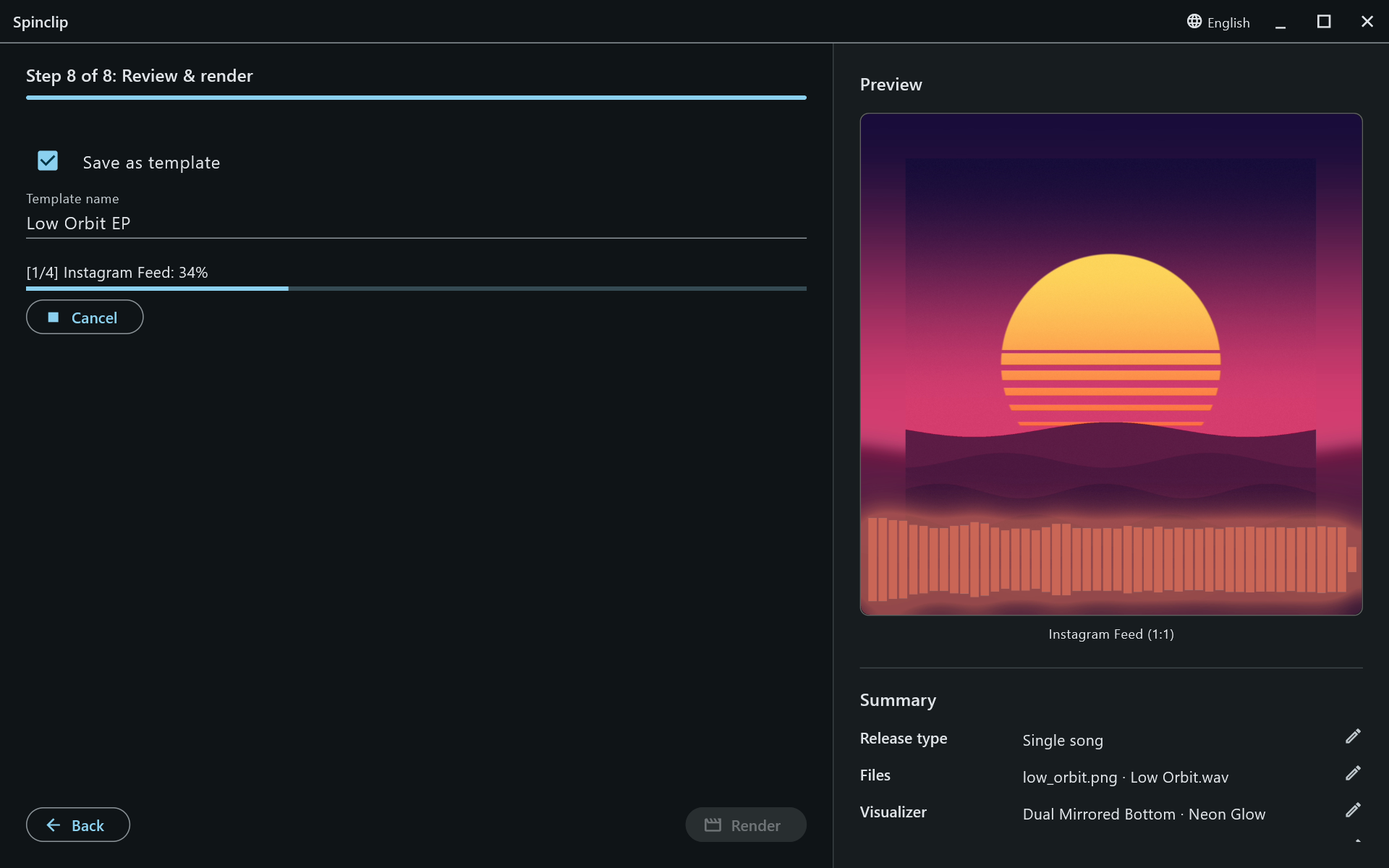
When it’s done, Open folder shows the videos. By default they’re in Documents/Spinclip/<cover name>/.
- Change the look: turn on Advanced settings on the first step, then see Visualizer and Customize.
- Use only part of the song: Duration.
- A whole EP at once: Release type.