
Templates
A template keeps everything about the look of a render — release type, visualizer placement and style, colours and gradient, blur and motion, cover, logo, text and QR code settings and positions, fades, vintage, platforms and their resolutions, and the performance settings — but not the cover or the songs. Load it on the next release and only the files change.
Saving one
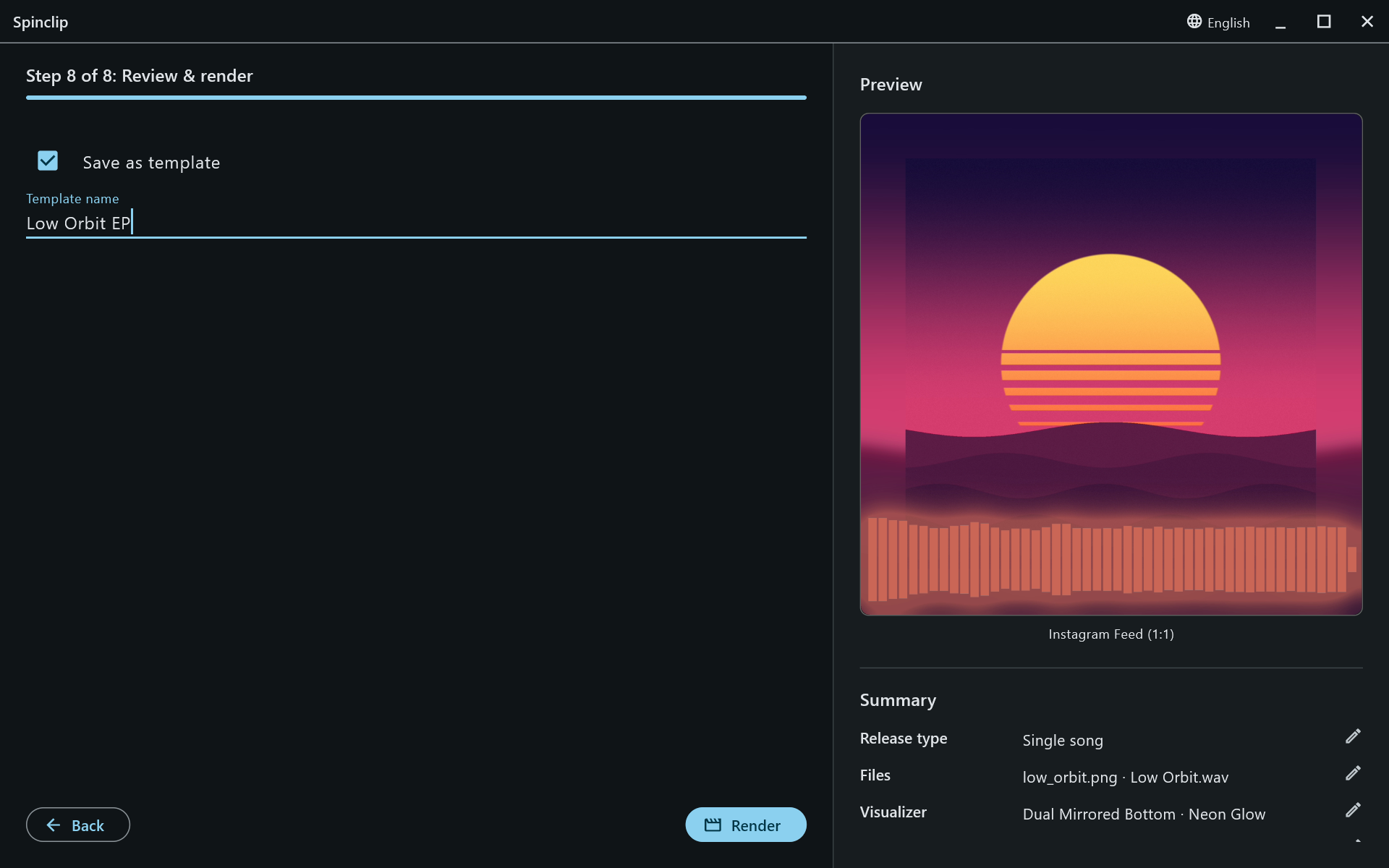
Section titled “Saving one”On Review & render, tick Save as template, type a name, and press Render: the template is saved as the render starts. A template with the same name is replaced.
Loading one
Section titled “Loading one”On the first step, open Load template and pick one. Its settings apply at once, and the preview follows.
Spinclip default (Bars 48) is always there: it puts every setting back to how a new release starts.
Deleting one
Section titled “Deleting one”Select it in Load template and press the bin next to the list. The built-in default can’t be deleted.
Templates are kept on your computer, in Spinclip’s application-support folder (templates.json).